顯示包含「style」標籤的文章。顯示所有文章

2010年12月20日星期一

[Mercurial] Graphical view of a repository, simple view of a Changeset of a File

With the style template mentioned in previous post: [Mercurial] Enhance hg log with nice coloring, you can view your repository, changeset and history of a file in a colorful way in a ANSI console.
Today I will introduce 4 alias commands: hggl, hgch, hgcs and hgsl.

1. [hggl] Graphical view of a repository

To see latest N changeset of your repository, you can type "hggl N"


2. [hgch] View the detail of latest commit

After you commit a file, it will become a head, the latest head call tip. To view the detail of tip, type "hgch"


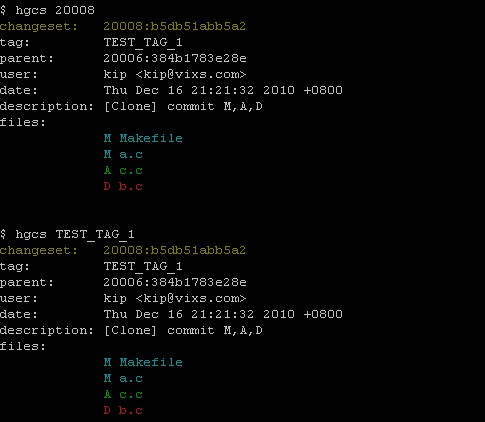
3. [hgcs] View detail of a Tag or Changeset

If you want to view the detail of a tag or a changeset, you can type "hgcs" followed by a ChangesetID or a Tag name.


4. [hgsl] View the history summary of a file

If you want to see the latest N changesets include the change of a particular file, you can type "hgsl N FILE"

To get the above 4 commands works, first, you need to download the style template and put them in "C:\Program Files\TortoiseHg\templates". Then, add the aliases in .hgrc and .bashrc.

Download:

Modify files:
File: .hgrc
[alias]
slog  = log --style slog
sglog = glog --style sglog
cslog = log --style changeset
chlog = log -r tip --style changeset

File: .bashrc
# hggl, hgch, hgcs and hgsl
alias hggl="hg sglog -v -l"
alias hgch="hg chlog"
alias hgcs="hg cslog -r"
alias hgsl="hg slog -l"

2010年12月18日星期六

[Console2 + Cygwin + bash + Mercurial + style template] to support ANSI escape code

As I find some nice looking hg log style template, I want to use them in my environment.
After spending sometime in trial and error, I figure out a way to support it.
Here are the necessary settings:

Console2 setting:

Title: cygwin
Icon: C:\cygwin\Cygwin.ico
Shell: C:\WINDOWS\system32\ansicon.exe C:\WINDOWS\system32\startbash.bat
Startup dir: C:\cygwin\home\kip

For ansicon.exe, please refer to other post: ANSICON provides ANSI escape sequences for Windows console programs 

startbash.bat is just two lines:

@echo off
C:\cygwin\bin\bash.exe --login -i


Cygwin setting:

.bash_profile:
export TERM=ansi


Mercurial setting:


.hgrc:
[extensions ]
color =


[color]
mode = ansi


The right click context menu "Open cygwin here" cannot be use after these changes, but you can still add "Open cygwin" in context menu by adding following in registry:


open_cygwin.reg

Windows Registry Editor Version 5.00


[HKEY_CLASSES_ROOT\Directory\shell\Open cygwin\command]
@="C:\\Program Files\\Console2\\Console.exe -t cygwin"

After completed all these steps, you can try hg slog, nlog, sglog.
Please refer to previous post: [Mercurial] Enhance hg log with nice coloring 

[Mercurial] Enhance hg log with nice coloring

<read [Console2 + Cygwin + bash + Mercurial + style template] to support ANSI escape code to setup the environment first>


Now, I use Console2 + cygwin + ansicon + bash for my Mercurial operation.
There are several hg command that support --style STYLE formatting, e.g. log, outgoing, incoming, tip, parents, heads, glog and serve.
The most useful common with styling is hg log.


I find a good website written by Steve Losh : Styling Mercurial’s CLI, which provide several good style template for hg log, includes "slog", "nlog" and "sglog".

Styling Mercurial’s CLI

posted by Steve Losh on
January 15, 2010


Mercurial has a great command line interface and many people use it without 
ever feeling the need for a GUI to manage their 
repositories. However, we can make it even better by taking advantage of 
Mercurial’s templating features.


In this tip I’m going to post some of the templates I use and show you how to 
use them yourself. Check out hg help templating if you want more 
details on how the templating actually works.


If you like what you see you can grab my templates by cloning their repository
from BitBucket:


hg clone http://bitbucket.org/sjl/mercurial-cli-templates/


NOTE: I’ve customized the colors of 
my Terminal, so the colors will look different for you. If you like the colors 
I’m using you can read the blog entry
I wrote about it.

Short Log

In a previous tip I described how to create an hg slog alias that can be very useful for counting changesets. With the right styling it can be useful in your day-to-day work. Here’s what the output of my hg slog command looks like:
To use this template you can edit your ~/.hgrc file to contain the following:
[alias]
slog = log --style=/full/path/to/map-cmdline.slog

Nice Log

The short log is great a quick review of the past few changesets, but for a much more detailed view of a particular changeset I’ve created an hg nlog alias, which looks like this:
To use this template you can edit your ~/.hgrc file to contain the following:
[alias]
nlog = log --style=/full/path/to/map-cmdline.nlog

Short Graphlog

The graphlog command is wonderful for reviewing the history of repositories with branches, but we can make it more compact and easier to read with another template. The result looks like this:
To use this template you can edit your ~/.hgrc file to contain the following:
[alias]
sglog = glog --style=/full/path/to/map-cmdline.sglog

===============================================================

I find a way no need to put /full/path/to/ the map-cmdline.xxx, just need to put the map-cmdline.xxx in C:\Program Files\TortoiseHg\templates, the set the alias as:
[alias]
slog  = log --style slog
nlog  = log --style nlog
sglog = log --style sglog

Then just try the following command:
hg slog -l10
hg slog -l10 -v
hg nlog -r tip
hg nlog -r tip -p

hg sglog -l8
hg sglog -l8 -v


Have fun :)