1. Bundle a changeset
Suppose the project have 2 developer A, B, working on a common base, then make their own change in their local working directories.
After B fix a bug and commit to his local repository (but havn't pushed to main), and A want B's changes, B can create a bundle for A by:
$ hg bundle -r BUG_FIX_CSID --base BASE_CSID b_changes.hg
2. Sending the bundle
These bundle files can then be exchanged via email attachments, FTP, USB drive, etc.
3. Unbundle, Update and Merge
After A received b_changes.hg, A can unbundle the file to A's local repository by:
$ hg unbundle b_changes.hg
This will create a new head.
A need to "hg update" to update A's working directory with B's bug fix which has been pull/import/unbundle to A's local repository.
Then A can see B changed files by "hg status", "hg diff", then merge by "hg merge".
Finally, "hg push" to main repository.
2011年1月3日星期一

2010年12月25日星期六
[Mercurial] Use hg strip to remove an unwanted changeset/revision/branch
Reference: http://mercurial.selenic.com/wiki/Strip
One way to remove unwanted commit is using "hg strip REV" command.
hg strip rev removes the rev revision and all its descendants from a repository.
Let me show you an example in using hg strip.
1. View the current repository tree

2. Add a new file a.c
$ echo "Create new file a.c" > a.c
$ hgad a.c
$ hgci "Add new file a.c"
3. Work on this file, modify, commit, and tag it as a stable version for release
$ echo "Alan fixed a serious driver bug." >> a.c
$ hgci "Driver bug fix"
$ echo "Curtis makes AAC decode 10 times faster." >> a.c
$ hgci "Enhance performance"
$ hgta "Full tested" RELEASE_1.0
$ cat a.c
Create new file a.c
Alan fixed a serious driver bug.
Curtis makes AAC decode 10 times faster.


7. Double check the file content is correct
$ cat a.c
Create new file a.c
Alan fixed a serious driver bug.
Curtis makes AAC decode 10 times faster.
Actually, Curtis and Alan already make the software good enough, can release RELEASE_1.0 to customer tomorrow! :)
One way to remove unwanted commit is using "hg strip REV" command.
hg strip rev removes the rev revision and all its descendants from a repository.
Let me show you an example in using hg strip.
1. View the current repository tree

2. Add a new file a.c
$ echo "Create new file a.c" > a.c
$ hgad a.c
$ hgci "Add new file a.c"
3. Work on this file, modify, commit, and tag it as a stable version for release
$ echo "Alan fixed a serious driver bug." >> a.c
$ hgci "Driver bug fix"
$ echo "Curtis makes AAC decode 10 times faster." >> a.c
$ hgci "Enhance performance"
$ hgta "Full tested" RELEASE_1.0
$ cat a.c
Create new file a.c
Alan fixed a serious driver bug.
Curtis makes AAC decode 10 times faster.

4. Base on RELEASE_1.0, continue add bug fix in hurry:
$ echo "Customer push, add quick fix." >> a.c
$ hgci "Not fully tested"
$ echo "Need to meet deadline, ci all fixes." >> a.c
$ hgci "Will be release 2.0 tomorrow"
$ cat a.c
Create new file a.c
Alan fixed a serious driver bug.
Curtis makes AAC decode 10 times faster.
Customer push, add quick fix.
Need to meet deadline, ci all fixes.

5. Use hg strip command to remove unwanted commit
At 11:00pm, suddenly find the last 2 commits (rev10, rev11) introduce a major bug, need to get rid of them and go back to rev9.

6. See the repository tree after hg strip
You can see rev10 and rev11 are removed from repository. The tip points to rev9.

7. Double check the file content is correct
$ cat a.c
Create new file a.c
Alan fixed a serious driver bug.
Curtis makes AAC decode 10 times faster.
Actually, Curtis and Alan already make the software good enough, can release RELEASE_1.0 to customer tomorrow! :)
Merry Xmas 2010!!!
2010年12月20日星期一
[Mercurial] Graphical view of a repository, simple view of a Changeset of a File
With the style template mentioned in previous post: [Mercurial] Enhance hg log with nice coloring, you can view your repository, changeset and history of a file in a colorful way in a ANSI console.
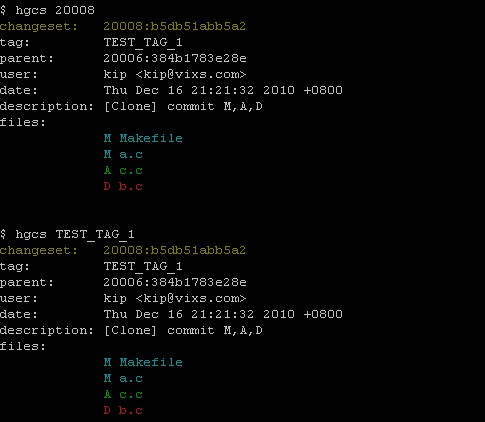
Today I will introduce 4 alias commands: hggl, hgch, hgcs and hgsl.
1. [hggl] Graphical view of a repository
To see latest N changeset of your repository, you can type "hggl N"



sglog = glog --style sglog
cslog = log --style changeset
chlog = log -r tip --style changeset
Today I will introduce 4 alias commands: hggl, hgch, hgcs and hgsl.
1. [hggl] Graphical view of a repository
To see latest N changeset of your repository, you can type "hggl N"
2. [hgch] View the detail of latest commit
After you commit a file, it will become a head, the latest head call tip. To view the detail of tip, type "hgch"
3. [hgcs] View detail of a Tag or Changeset
If you want to view the detail of a tag or a changeset, you can type "hgcs" followed by a ChangesetID or a Tag name.
4. [hgsl] View the history summary of a file
If you want to see the latest N changesets include the change of a particular file, you can type "hgsl N FILE"
To get the above 4 commands works, first, you need to download the style template and put them in "C:\Program Files\TortoiseHg\templates". Then, add the aliases in .hgrc and .bashrc.
Download:
Modify files:
File: .hgrc
[alias]
slog = log --style slogsglog = glog --style sglog
cslog = log --style changeset
chlog = log -r tip --style changeset
File: .bashrc
# hggl, hgch, hgcs and hgsl
alias hggl="hg sglog -v -l"
alias hgch="hg chlog"
alias hgcs="hg cslog -r"
alias hgsl="hg slog -l"
2010年12月18日星期六
[Console2 + Cygwin + bash + Mercurial + style template] to support ANSI escape code
As I find some nice looking hg log style template, I want to use them in my environment.
After spending sometime in trial and error, I figure out a way to support it.
Here are the necessary settings:
Console2 setting:
Title: cygwin
Icon: C:\cygwin\Cygwin.ico
Shell: C:\WINDOWS\system32\ansicon.exe C:\WINDOWS\system32\startbash.bat
Startup dir: C:\cygwin\home\kip
For ansicon.exe, please refer to other post: ANSICON provides ANSI escape sequences for Windows console programs
startbash.bat is just two lines:
@echo off
C:\cygwin\bin\bash.exe --login -i
Cygwin setting:
.bash_profile:
export TERM=ansi
Mercurial setting:
.hgrc:
[extensions ]
color =
[color]
mode = ansi
The right click context menu "Open cygwin here" cannot be use after these changes, but you can still add "Open cygwin" in context menu by adding following in registry:
open_cygwin.reg
Windows Registry Editor Version 5.00
[HKEY_CLASSES_ROOT\Directory\shell\Open cygwin\command]
@="C:\\Program Files\\Console2\\Console.exe -t cygwin"
After spending sometime in trial and error, I figure out a way to support it.
Here are the necessary settings:
Console2 setting:
Title: cygwin
Icon: C:\cygwin\Cygwin.ico
Shell: C:\WINDOWS\system32\ansicon.exe C:\WINDOWS\system32\startbash.bat
Startup dir: C:\cygwin\home\kip
For ansicon.exe, please refer to other post: ANSICON provides ANSI escape sequences for Windows console programs
@echo off
C:\cygwin\bin\bash.exe --login -i
Cygwin setting:
.bash_profile:
export TERM=ansi
Mercurial setting:
.hgrc:
[extensions ]
color =
[color]
mode = ansi
The right click context menu "Open cygwin here" cannot be use after these changes, but you can still add "Open cygwin" in context menu by adding following in registry:
open_cygwin.reg
Windows Registry Editor Version 5.00
[HKEY_CLASSES_ROOT\Directory\shell\Open cygwin\command]
@="C:\\Program Files\\Console2\\Console.exe -t cygwin"
After completed all these steps, you can try hg slog, nlog, sglog.
Please refer to previous post: [Mercurial] Enhance hg log with nice coloring
[Mercurial] Enhance hg log with nice coloring
<read [Console2 + Cygwin + bash + Mercurial + style template] to support ANSI escape code to setup the environment first>
Now, I use Console2 + cygwin + ansicon + bash for my Mercurial operation.
There are several hg command that support --style STYLE formatting, e.g. log, outgoing, incoming, tip, parents, heads, glog and serve.
The most useful common with styling is hg log.
I find a good website written by Steve Losh : Styling Mercurial’s CLI, which provide several good style template for hg log, includes "slog", "nlog" and "sglog".


Now, I use Console2 + cygwin + ansicon + bash for my Mercurial operation.
There are several hg command that support --style STYLE formatting, e.g. log, outgoing, incoming, tip, parents, heads, glog and serve.
The most useful common with styling is hg log.
I find a good website written by Steve Losh : Styling Mercurial’s CLI, which provide several good style template for hg log, includes "slog", "nlog" and "sglog".
Styling Mercurial’s CLI
posted by Steve Losh on
January 15, 2010
January 15, 2010
Mercurial has a great command line interface and many people use it without
ever feeling the need for a GUI to manage their
repositories. However, we can make it even better by taking advantage of
Mercurial’s templating features.
In this tip I’m going to post some of the templates I use and show you how to
use them yourself. Check out
hg help templating if you want more details on how the templating actually works.
If you like what you see you can grab my templates by cloning their repository
from BitBucket:
hg clone http://bitbucket.org/sjl/mercurial-cli-templates/
NOTE: I’ve customized the colors of
my Terminal, so the colors will look different for you. If you like the colors
I’m using you can read the blog entry
I wrote about it.
Short Log
In a previous tip I described how to create an
hg slog alias that can be very useful for counting changesets. With the right styling it can be useful in your day-to-day work. Here’s what the output of my hg slog command looks like: To use this template you can edit your ~/.hgrc file to contain the following:
[alias]
Nice Log
The short log is great a quick review of the past few changesets, but for a much more detailed view of a particular changeset I’ve created an
hg nlog alias, which looks like this: To use this template you can edit your ~/.hgrc file to contain the following:
[alias]
Short Graphlog
The graphlog command is wonderful for reviewing the history of repositories with branches, but we can make it more compact and easier to read with another template. The result looks like this:
To use this template you can edit your ~/.hgrc file to contain the following:
[alias]
===============================================================
I find a way no need to put /full/path/to/ the map-cmdline.xxx, just need to put the map-cmdline.xxx in C:\Program Files\TortoiseHg\templates, the set the alias as:[alias]slog = log --style slog
nlog = log --style nlog
sglog = log --style sglog
Then just try the following command:hg slog -l10hg slog -l10 -v
hg nlog -r tip
hg nlog -r tip -p
hg sglog -l8hg sglog -l8 -v

Have fun :)2010年12月17日星期五
Mercurial workflows: Use REBASE to replace MERGE
Mercurial workflows: mainline workflow
The simplified workflow
In the simplified workflow, it is nearly identical to the normal centralizedworkflows (except most operations are local). When I want to start work
for the day, I’ll:
- work work work
- hg commit –Am “Working on some stuff”
- work work work
- hg ci –Am “Working on some more stuff”
- work work work
- hg ci –Am “Finished my stuff”

Unlike the previous workflow, my “master” bookmark moves along, instead of always pointing at the latest pulled commit. It’s still important that this bookmark sticks around, as we’ll see soon. Now that I want to push, I want to first pull down incoming commits. Let’s suppose that someone else also made some commits on another repository and already pushed. The server repository shows this:

Note that we don’t see our bookmarks here, as by default bookmarks don’t get pushed upstream. When we pull from upstream, we’ll get the commit from the “otherdude” developer. So, I’ll:
- hg pull --rebase

This is what we expected, our commits that originally came after the “Finishing work on a feature” commit got moved AFTER the “otherdude” commit. This produces a nice clean timeline that makes localizing bugs and merging changes a lot easier. With a regular pull/merge workflow, you’re merging all 3 commits at once. With a rebase, I merge one commit at a time, making the potential merges much smaller. Each merge also modifies each commit, instead of one gigantic merge commit with all changes coming in at once.
Anyway, I’ve pull upstream changes, so now I’m ready to push:
- hg push –b master
Comparing rebase and merge
Just to show what a merge looks like in comparison, let’s say “otherdude” doesn’t rebase before he commits his additional work. He has some more commits:
Now he wants to push these two commits up. However, the other user already pushed rebased commits, so now the server looks like:

Instead of doing a rebase on pull, he does a regular pull and update. Because other commits have gone in, he’ll need to do a merge:
- hg pull –u
- hg merge
- hg ci –Am “Stupid merge commit”

So the silly thing about this is the stupid merge commit contains ALL changes from the other two outgoing commits, yet all three commits get pushed! This also becomes really ugly over time, especially when you have overlapping commits and merges:

I’m not sure human beings are meant to comprehend this picture, so I’ll take the rebased workflow with its clean, linear history any day of the week. With the simplified workflow, rebasing is actually simpler than the pull/merge/commit workflow. Rebase is good, whether we work in topic branches or not.
source: mercurial-workflows-mainline-workflow
訂閱:
文章 (Atom)